

Hướng dẫn sử dụng
User guide
Mọi thứ cần biết để xem video nước ngoài bằng tiếng Việt: cài trong 1 phút, bấm phát là nghe.
Everything you need to watch foreign videos in your language: install in a minute, press play and listen.
⬇️ 1. Cài đặt1. Install
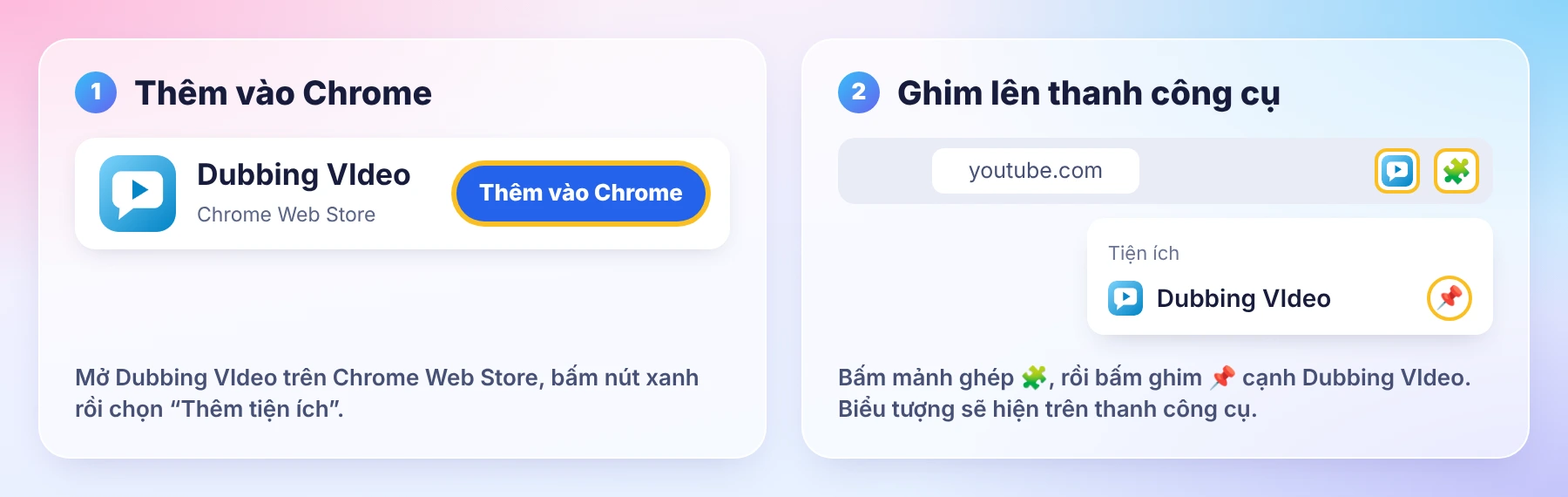
- Mở trang Dubbing VIdeo trên Chrome Web Store (hoặc Edge Add-ons), bấm Thêm vào Chrome.
- Bấm biểu tượng mảnh ghép 🧩 trên thanh công cụ → bấm ghim 📌 cạnh Dubbing VIdeo để biểu tượng luôn hiện.
- Chạy trên máy tính Windows, macOS, Linux với Chrome, Edge, Cốc Cốc, Brave. Chưa hỗ trợ điện thoại, Safari, Firefox.
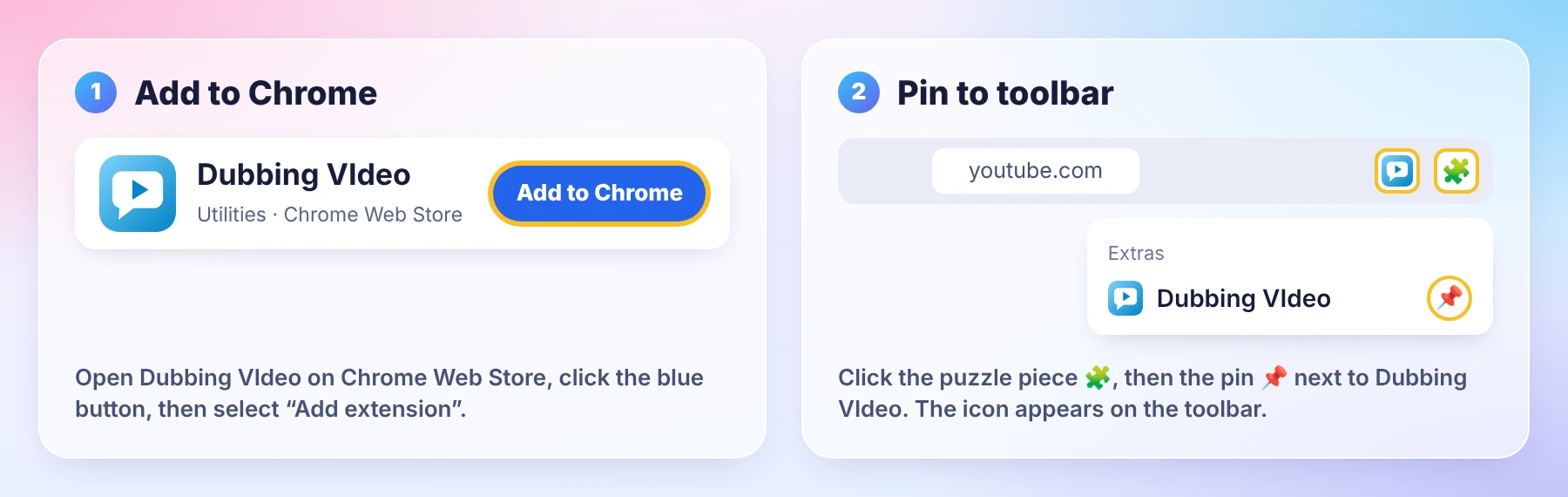
- Open Dubbing VIdeo on the Chrome Web Store (or Edge Add-ons) and click Add to Chrome.
- Click the puzzle icon 🧩 in the toolbar → pin 📌 Dubbing VIdeo so the icon stays visible.
- Works on Windows, macOS and Linux computers with Chrome, Edge, Cốc Cốc and Brave. Phones, Safari and Firefox are not supported yet.
▶️ 2. Bắt đầu lồng tiếng2. Start dubbing
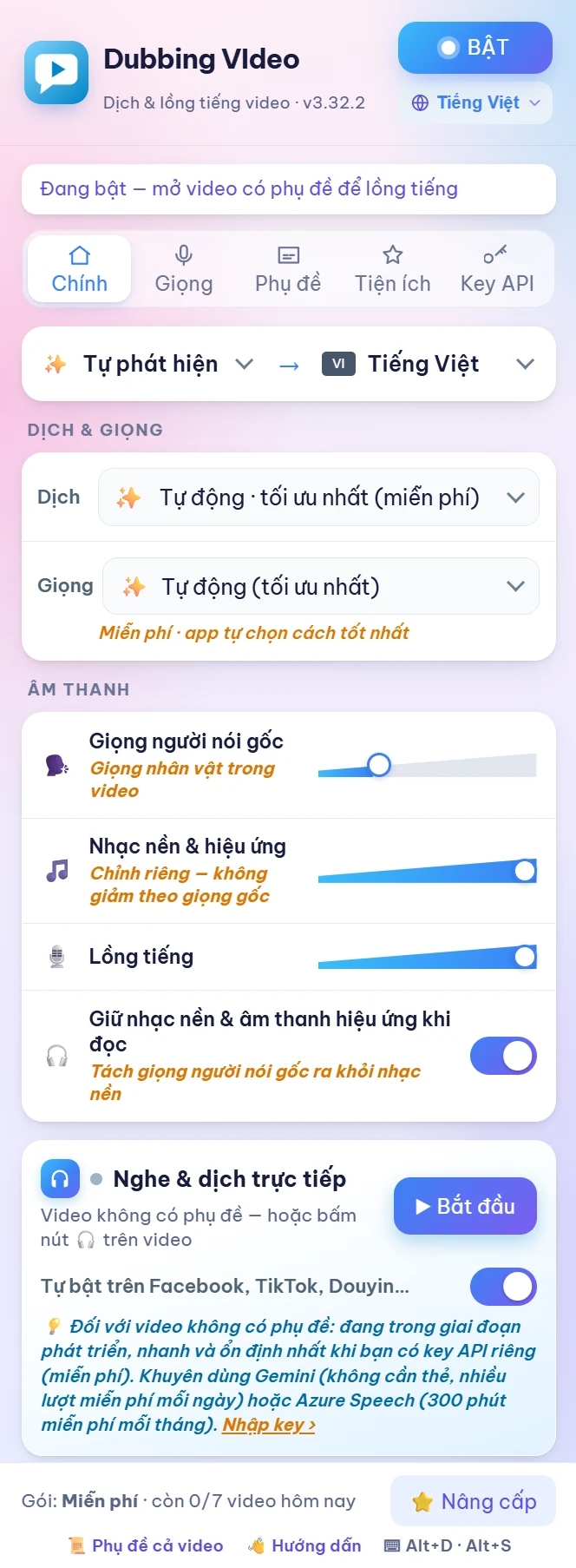
- Bấm biểu tượng tiện ích → bấm nút BẬT ở góc trên.
- Mở một video (YouTube, Bilibili, TikTok, Facebook…) và bấm phát. Video có phụ đề sẽ có giọng Việt gần như ngay lập tức.
- Trên các trang khác, bấm nút tròn nổi ở mép phải màn hình để bắt đầu.
- Phím tắt: Alt+D và Alt+S (xem trong bảng tiện ích).
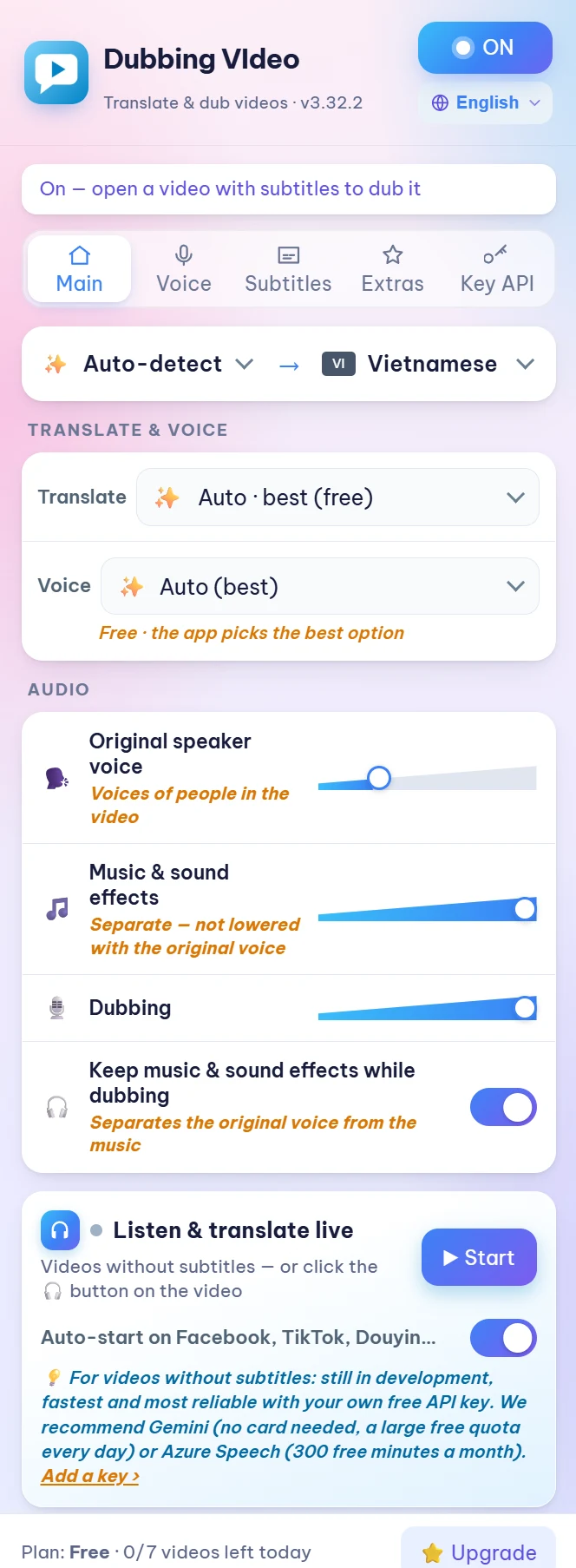
- Click the extension icon → press ON at the top.
- Open a video (YouTube, Bilibili, TikTok, Facebook…) and press play. Videos with subtitles are dubbed almost instantly.
- On other sites, click the round floating button at the right edge of the screen.
- Shortcuts: Alt+D and Alt+S (shown in the extension popup).
Gói miễn phí: 7 video mỗi ngày, không cần thẻ.
Free plan: 7 videos a day, no card needed.
🎛️ 3. Các nút trên video3. Video buttons
Khi tiện ích đang bật, thanh điều khiển của video có thêm các nút sau:
While the extension is on, the video controls get these extra buttons:
| Nút | Tác dụng |
|---|---|
| CC2 | Phụ đề song ngữ: dòng gốc + dòng dịch. Bấm lại để tắt. |
| CC1 | Chỉ phụ đề tiếng dịch, một dòng. |
| EN | Chỉ phụ đề tiếng Anh — để học tiếng Anh theo video. |
| A→VI | Dịch cả trang: tiêu đề, mô tả, bình luận song ngữ. |
| 📜 | Khung phụ đề bên phải: bấm câu để tua, tìm, sửa, tải .srt. |
| ⏭QC | Tự bấm “Bỏ qua” quảng cáo khi YouTube cho phép. |
| 1x 1.5 2 | Tốc độ phát video. |
| 🌙 | Đổi nền sáng / tối cho trang. |
| 🔊 | Âm lượng: giọng người nói gốc, nhạc nền & hiệu ứng, giọng lồng — chỉnh riêng từng phần. |
| Button | What it does |
|---|---|
| CC2 | Bilingual subtitles: original + translation. Click again to turn off. |
| CC1 | Translated subtitles only, one line. |
| EN | English subtitles only — learn English while watching. |
| A→VI | Translate the whole page: title, description, comments side by side. |
| 📜 | Subtitle panel on the right: click a line to jump, search, edit, download .srt. |
| ⏭QC | Clicks “Skip” on ads as soon as YouTube allows. |
| 1x 1.5 2 | Playback speed. |
| 🌙 | Light / dark page. |
| 🔊 | Volume: original speaker, background music & effects, dubbed voice — each on its own slider. |
📜 4. Khung phụ đề4. Subtitle panel
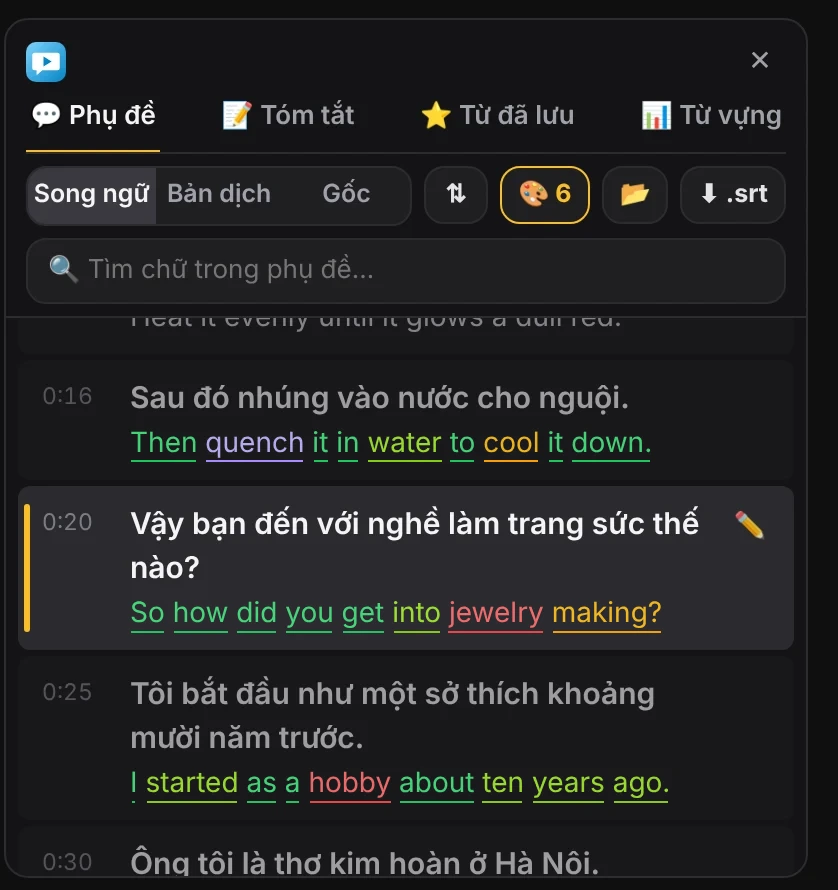
- 💬 Phụ đề: toàn bộ câu của video. Bấm một câu để tua tới đó; ✏️ để sửa câu dịch (giọng đọc đổi theo).
- Song ngữ / Bản dịch / Gốc: chọn dòng muốn xem; ⇅ đổi dòng nào lên trước.
- 📝 Tóm tắt: tóm tắt nội dung video bằng một cú bấm.
- ⭐ Từ đã lưu: rê chuột lên một từ để xem nghĩa, bấm ⭐ để lưu, ôn lại sau.
- 📊 Từ vựng: video dùng bao nhiêu từ ở mỗi mức độ khó, cần biết bao nhiêu từ để hiểu 95%.
- ⬇ .srt: tải phụ đề song ngữ về máy.
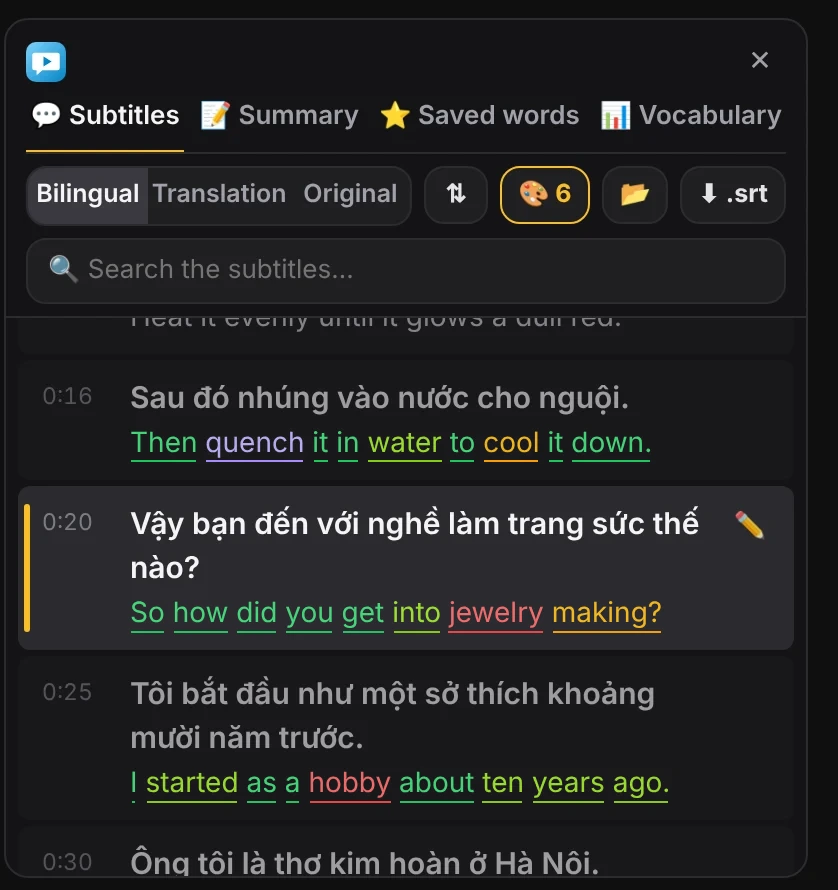
- 💬 Subtitles: every line of the video. Click a line to jump there; ✏️ to edit a translation (the voice follows).
- Bilingual / Translation / Original: choose which lines to show; ⇅ swaps the order.
- 📝 Summary: one-click summary of the video.
- ⭐ Saved words: hover a word to see its meaning, click ⭐ to save it for review.
- 📊 Vocabulary: how many words of each difficulty the video uses, and how many you need for 95% understanding.
- ⬇ .srt: download the bilingual subtitles.
🎨 5. Tô màu học ngoại ngữ5. Learning colors
Bấm nút 🎨 trong khung phụ đề để bật / tắt từng loại màu trên dòng gốc:
Click 🎨 in the subtitle panel to turn each color on or off on the original line:
- Chủ ngữ, động từ chính, cụm từ cố định, ranh giới mệnh đề (│).
- Mức từ: gạch chân màu theo độ khó (từ thông dụng nhất không gạch để đỡ rối mắt).
- Dòng dịch theo màu: tô dòng tiếng Việt theo đúng màu của dòng gốc (cần key Gemini).
- Subject, main verb, fixed phrases, clause breaks (│).
- Word level: colored underline by difficulty (the most common words are left plain).
- Matching translation colors: colors the translated line to match the original (needs a Gemini key).
| Ngôn ngữ của video | Có gì |
|---|---|
| Tiếng Anh | Đủ màu: chủ ngữ, động từ, cụm từ, mệnh đề, mức từ |
| Trung, Nhật, Hàn, Đức, Pháp, Tây Ban Nha, Ý, Bồ Đào Nha, Nga | Chủ ngữ, động từ, mệnh đề, mức từ (độ chính xác thấp hơn tiếng Anh) |
| Ả Rập, Indonesia, Thổ Nhĩ Kỳ, Thái, Hindi | Mức từ và tab 📊 Từ vựng |
| Video language | Available |
|---|---|
| English | All colors: subject, verb, phrases, clauses, word level |
| Chinese, Japanese, Korean, German, French, Spanish, Italian, Portuguese, Russian | Subject, verb, clauses, word level (less accurate than English) |
| Arabic, Indonesian, Turkish, Thai, Hindi | Word level and the 📊 Vocabulary tab |
🌐 6. Dịch cả trang6. Translate pages
Bấm A→VI (trên video hoặc nút nổi bên phải) để dịch tiêu đề, mô tả, bình luận, bài đăng ngay dưới chữ gốc — chạy trên YouTube, Bilibili, X, Reddit, Xiaohongshu, VK, Telegram, Discord và hầu hết các trang khác. Bấm lại để tắt.
Click A→VI (on the video or the floating button on the right) to translate titles, descriptions, comments and posts right under the original text — works on YouTube, Bilibili, X, Reddit, Xiaohongshu, VK, Telegram, Discord and most other sites. Click again to turn it off.
🎙️ 7. Video không phụ đề & chọn giọng7. Videos without subtitles
Video không có phụ đề thì tiện ích phải nghe giọng người nói, nhận dạng, dịch rồi mới đọc — nên giọng Việt đến chậm hơn. Có key riêng (miễn phí) thì nhanh hơn hẳn:
For videos without subtitles the extension has to listen, recognize, translate and then speak, so the voice comes later. Your own free key makes it much faster:
| Giọng | Chờ tối đa | Thường |
|---|---|---|
| Azure / Google (có key) | ~8 giây | ~5 giây · nhanh nhất |
| Gemini (có key) | ~10 giây | ~7 giây |
| Signature (không cần key) | ~12 giây | ~10 giây · chậm nhất |
| Voice | Max wait | Usually |
|---|---|---|
| Azure / Google (with key) | ~8 s | ~5 s · fastest |
| Gemini (with key) | ~10 s | ~7 s |
| Signature (no key) | ~12 s | ~10 s · slowest |
Thời gian là ước tính, thay đổi theo mạng và độ dài câu.
Times are estimates and vary with your connection and sentence length.
🔑 8. Tạo key API (Gemini, Claude, ChatGPT, Azure)8. Create an API key (Gemini, Claude, ChatGPT, Azure)
Key API là “chìa khoá” để tiện ích dùng AI của chính bạn: dịch tự nhiên hơn, video không phụ đề nhanh hơn, giọng đọc hay hơn. Mỗi người tự tạo key của mình; key chỉ lưu trong trình duyệt trên máy bạn và gửi thẳng tới hãng, không đi qua máy chủ của chúng tôi. Dán key ở biểu tượng tiện ích → tab Key API rồi bấm Kiểm tra.
An API key lets the extension use your own AI: more natural translations, faster dubbing for videos without subtitles, better voices. Everyone creates their own key; it stays in your browser and goes straight to the provider, never through our servers. Paste it in extension icon → API key tab, then click Check.
| Hãng | Giá | Dùng để |
|---|---|---|
| Gemini (Google AI Studio) | Miễn phí hạn mức theo ngày, không cần thẻ | Dịch, sửa lỗi nghe, nghe video không phụ đề, giọng Gemini · dễ tạo nhất |
| Azure Speech (Microsoft) | Miễn phí gói F0: 500.000 ký tự giọng đọc/tháng | Giọng đọc và nghe video không phụ đề · nhanh nhất |
| ChatGPT (OpenAI) | Trả theo dùng nạp trước, tối thiểu $5 | Dịch, nghe video không phụ đề, 11 giọng ChatGPT |
| Claude (Anthropic) | Trả theo dùng nạp trước, tối thiểu $5 | Dịch cả câu rất tự nhiên (Claude không nghe được âm thanh: Chrome nghe, Claude dịch) |
| Google Cloud TTS | Miễn phí 1–4 triệu ký tự/tháng, cần bật thanh toán | Giọng đọc WaveNet, Neural2, Chirp 3 HD |
| Provider | Price | Used for |
|---|---|---|
| Gemini (Google AI Studio) | Free daily quota, no card needed | Translation, fixing mishearing, listening to videos without subtitles, Gemini voices · easiest |
| Azure Speech (Microsoft) | Free F0 tier: 500,000 voice characters/month | Voices and listening to videos without subtitles · fastest |
| ChatGPT (OpenAI) | Pay as you go prepaid, $5 minimum | Translation, listening to videos without subtitles, 11 ChatGPT voices |
| Claude (Anthropic) | Pay as you go prepaid, $5 minimum | Very natural whole-sentence translation (Claude can't hear audio: Chrome listens, Claude translates) |
| Google Cloud TTS | Free 1–4M characters/month, billing required | WaveNet, Neural2, Chirp 3 HD voices |
Nhập càng nhiều hãng càng bền: tiện ích tự xoay vòng — hãng này hết lượt hoặc hết tiền thì tự chuyển sang hãng khác.
The more providers you add, the longer it lasts: the extension rotates your keys — when one runs out of quota or credit it switches to another.
Gemini Miễn phíFree
- Mở aistudio.google.com/apikey, đăng nhập tài khoản Google.
- Bấm Create API key (Tạo khoá API), chọn hoặc tạo một dự án.
- Bấm biểu tượng sao chép cạnh key (bắt đầu bằng
AIza…). - Dán vào ô Gemini trong tab Key API → Kiểm tra.
- Open aistudio.google.com/apikey and sign in with Google.
- Click Create API key and pick or create a project.
- Click the copy icon next to the key (it starts with
AIza…). - Paste it into the Gemini box in the API key tab → Check.
Claude Trả phíPaid
- Mở Claude Console, đăng nhập bằng email hoặc Google.
- Vào Billing → nạp tín dụng (tối thiểu $5). Có gói Claude Max thì nhận tín dụng API tặng kèm — xem cách nhận.
- Vào API keys → Create Key → đặt tên (vd “Dubbing VIdeo”) → Copy. Key bắt đầu bằng
sk-ant-…và chỉ hiện một lần. - Dán vào ô Claude trong tab Key API → Kiểm tra.
- Open Claude Console and sign in with email or Google.
- Go to Billing → buy credits ($5 minimum). With Claude Max you can claim bundled API credits — see how.
- Go to API keys → Create Key → name it (e.g. “Dubbing VIdeo”) → Copy. The key starts with
sk-ant-…and is shown only once. - Paste it into the Claude box in the API key tab → Check.
ChatGPT (OpenAI) Trả phíPaid
- Mở platform.openai.com/api-keys, đăng nhập (dùng được tài khoản ChatGPT).
- Vào Billing → Add to credit balance (tối thiểu $5). Gói ChatGPT Plus không kèm tín dụng API; ChatGPT Pro có — xem cách nhận.
- Bấm Create new secret key → Copy. Key bắt đầu bằng
sk-…và chỉ hiện một lần. - Dán vào ô ChatGPT (OpenAI) trong tab Key API → Kiểm tra.
- Open platform.openai.com/api-keys and sign in (your ChatGPT account works).
- Go to Billing → Add to credit balance ($5 minimum). ChatGPT Plus does not include API credits; ChatGPT Pro does — see how.
- Click Create new secret key → Copy. The key starts with
sk-…and is shown only once. - Paste it into the ChatGPT (OpenAI) box in the API key tab → Check.
Azure Speech Miễn phíFree
- Mở trang tạo Speech service, đăng nhập tài khoản Microsoft (lần đầu phải tạo tài khoản Azure, có bước xác minh thẻ; gói F0 không tính tiền).
- Chọn Subscription, Resource group (Create new), Region (vd Southeast Asia), đặt tên bất kỳ, Pricing tier Free F0 → Review + create → Create.
- Bấm Go to resource → Keys and Endpoint → sao chép KEY 1 và ghi lại Location/Region.
- Dán key vào ô Azure Speech, chọn đúng Region (vd
southeastasia) → Kiểm tra.
- Open the Speech service page and sign in with a Microsoft account (the first time you create an Azure account, which includes card verification; the F0 tier is free).
- Choose a Subscription, a Resource group (Create new), a Region (e.g. Southeast Asia), any name, Pricing tier Free F0 → Review + create → Create.
- Click Go to resource → Keys and Endpoint → copy KEY 1 and note the Location/Region.
- Paste the key into the Azure Speech box, pick the same Region (e.g.
southeastasia) → Check.
Google Cloud TTS Miễn phíFree
- Mở Google Cloud Console, tạo dự án và bật thanh toán (chỉ tính tiền khi vượt hạn mức miễn phí).
- Bật Cloud Text-to-Speech API.
- Vào Credentials → Create credentials → API key → sao chép.
- Dán vào ô Google Cloud TTS trong tab Key API → Kiểm tra.
- Open Google Cloud Console, create a project and enable billing (you are only charged above the free quota).
- Enable the Cloud Text-to-Speech API.
- Go to Credentials → Create credentials → API key → copy it.
- Paste it into the Google Cloud TTS box in the API key tab → Check.
💡 Mẹo an toànSafety tips
- Không gửi key cho người khác, không dán lên web công khai. Lộ key thì xoá key cũ ở trang hãng và tạo key mới.
- Với hãng trả phí (ChatGPT, Claude, Google Cloud), đặt giới hạn chi tiêu hoặc cảnh báo ngân sách ở trang thanh toán của hãng.
- Video không phụ đề có 2 chế độ ở tab Giọng: 💰 Tiết kiệm (mặc định, ít tốn nhất) và 🚀 Dùng nhiều (AI tự nghe, tốn hơn).
- Có ChatGPT Pro, Claude Max hoặc Google AI Pro? Nhận tín dụng API tặng kèm mỗi tháng.
- Never share your key or paste it on a public site. If it leaks, delete it on the provider's page and create a new one.
- For paid providers (ChatGPT, Claude, Google Cloud), set a spending limit or budget alert on the provider's billing page.
- Videos without subtitles have 2 modes in the Voice tab: 💰 Saver (default, cheapest) and 🚀 Heavy use (the AI listens itself, costs more).
- Have ChatGPT Pro, Claude Max or Google AI Pro? Claim the monthly API credits they include.
⭐ 9. Sau khi mua Pro9. After buying Pro
Mua bằng nút trong tiện ích (biểu tượng tiện ích → ⭐ Nâng cấp): trả tiền xong, máy đó tự lên Pro sau vài giây, không cần nhập gì.
Bought from the button inside the extension (extension icon → ⭐ Upgrade): once paid, that computer switches to Pro by itself within seconds — nothing to type.

Mua trên web, hoặc dùng ở máy khác: đăng nhập bằng email đã mua. Bạn sẽ dùng 2 email:
Bought on the website, or using another computer: sign in with your purchase email. You'll use 2 emails:

Dòng License key là mã kích hoạt. Chỉ cần khi mua bằng thẻ quốc tế, PayPal, Alipay hoặc WeChat. Hãy giữ email này.
The License key line is your activation key. Only needed for card, PayPal, Alipay or WeChat purchases. Keep this email.
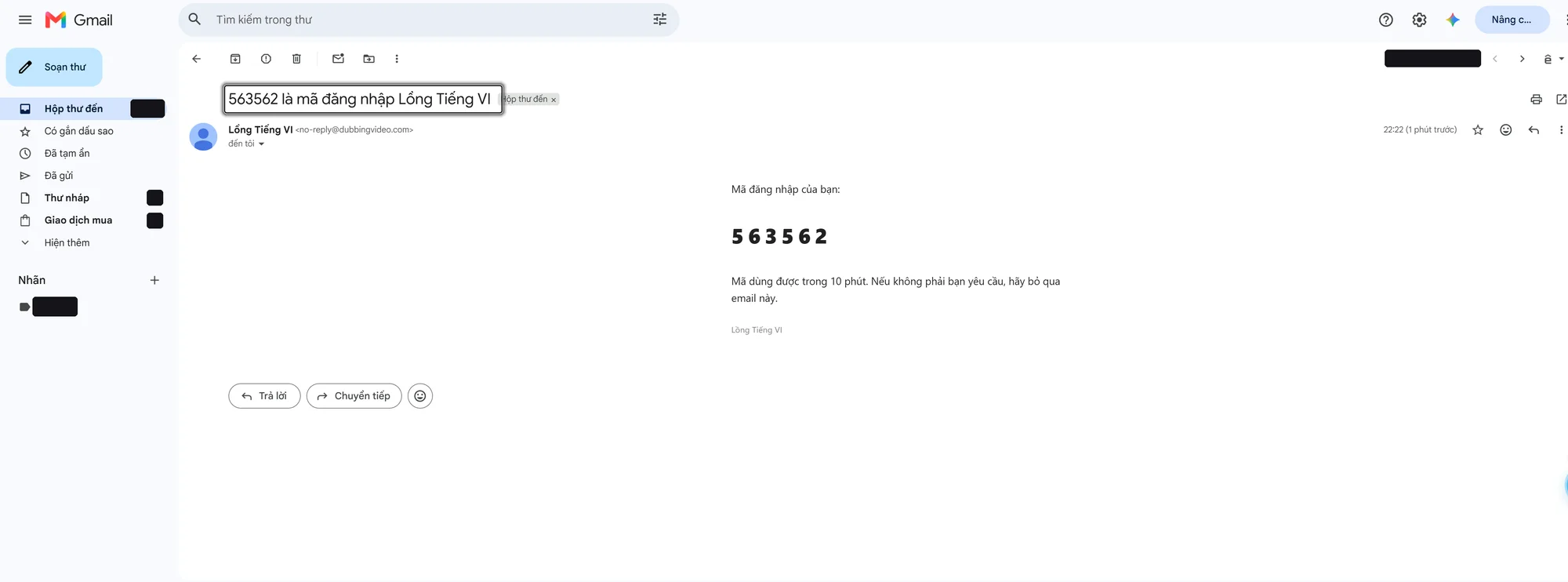
Mã 6 số để đăng nhập, dùng được trong 10 phút.
The 6-digit code to sign in, valid for 10 minutes.
- Bấm biểu tượng tiện ích → ⭐ Nâng cấp.
- Ở dòng “Đã mua ở máy khác hoặc trên web?”, nhập email bạn dùng khi mua → bấm Gửi mã.
- Mở hộp thư, lấy mã 6 số (email ②) → dán vào ô “Mã 6 số trong email”.
- Nếu mua bằng thẻ quốc tế / PayPal / Alipay / WeChat: dán thêm License key (email ①) vào ô “Mã kích hoạt”.
- Bấm Đăng nhập → thấy “✓ Đã lên gói Pro” và dòng Gói: Pro · còn … ngày ở cuối bảng.
- Click the extension icon → ⭐ Upgrade.
- Under “Bought on another computer or on the website?”, enter the email you used to buy → click Send code.
- Open your inbox, copy the 6-digit code (email ②) → paste it into “6-digit code from the email”.
- If you paid by card / PayPal / Alipay / WeChat: also paste the License key (email ①) into “Activation code”.
- Click Sign in → you'll see “✓ Pro is on” and Plan: Pro · … days left at the bottom.
 1 – 2
 3 – 4
 5
Bảng tiện ích tự đóng khi bạn sang tab email để lấy mã — mở lại là các ô đã gõ vẫn còn, cứ nhập tiếp.
The extension popup closes when you switch to your email tab — reopen it and everything you typed is still there.
Không thấy email?
Xem thư mục Quảng cáo và Spam. Mã 6 số hết hạn sau 10 phút: bấm “← Đổi email hoặc gửi lại mã” để nhận mã mới. Vẫn không thấy, gửi thư tới support@dubbingvideo.com kèm email đã mua.
Didn't get the email?
Check your Promotions and Spam folders. The 6-digit code expires after 10 minutes: click “← Change email or resend the code” for a new one. Still nothing? Write to support@dubbingvideo.com with your purchase email.
Đổi sang máy khác?
Ở máy cũ: ⭐ Quản lý → Đăng xuất khỏi máy này. Rồi đăng nhập ở máy mới như các bước trên.
Moving to another computer?
On the old one: ⭐ Manage → Sign out on this computer. Then sign in on the new one with the steps above.
Gói tháng / năm có tự gia hạn không?
Gói Monthly / Yearly tự gia hạn; hủy bất cứ lúc nào bằng đường link quản lý đơn trong email ①. Gói one-time (1 tháng / 1 năm) trả 1 lần, hết hạn thì dừng, không tự trừ tiền.
Do monthly / yearly plans renew?
Monthly / Yearly renew automatically; cancel anytime from the order link in email ①. One-time plans (1 month / 1 year) are paid once and simply end — no automatic charge.
💡 10. Câu hỏi thường gặp10. FAQ
Bấm phát mà không có giọng Việt?
Kiểm tra nút BẬT trong tiện ích đã sáng chưa, rồi tải lại trang (F5). Video không có phụ đề thì giọng đến sau vài giây (xem mục 7).
Có tốn tiền key không?
Gemini và Azure Free F0 có hạn mức miễn phí; hết hạn mức thì dừng, không tự tính tiền. Google Cloud cần bật thanh toán và chỉ tính tiền khi vượt hạn mức miễn phí mỗi tháng. ChatGPT và Claude trả theo dùng từ số tiền bạn nạp trước (tối thiểu $5), hết tiền thì dừng.
Key của tôi có an toàn không?
Key chỉ lưu trong trình duyệt trên máy bạn và gửi thẳng tới hãng (Google, Microsoft, OpenAI, Anthropic), không đi qua máy chủ của chúng tôi.
Phụ đề ra sai ngôn ngữ gốc?
Chọn đúng ngôn ngữ ở ô “Tự phát hiện” trong tiện ích. Nếu chữ nằm sẵn trong hình video (không phải phụ đề) thì tiện ích không đọc được.
I press play but hear no dubbing?
Make sure ON is active in the extension, then reload the page (F5). Videos without subtitles start a few seconds later (see section 7).
Do keys cost money?
Gemini and Azure Free F0 have free quotas and simply stop when used up. Google Cloud needs billing enabled and only charges above its monthly free quota. ChatGPT and Claude are pay-as-you-go from credit you top up in advance ($5 minimum) and stop when it runs out.
Is my key safe?
Keys are stored only in your browser and sent directly to the provider (Google, Microsoft, OpenAI, Anthropic), never through our servers.
Wrong source language?
Pick the right language instead of “Auto detect” in the extension. Text burned into the video picture (not subtitles) can't be read.